01
Upload image
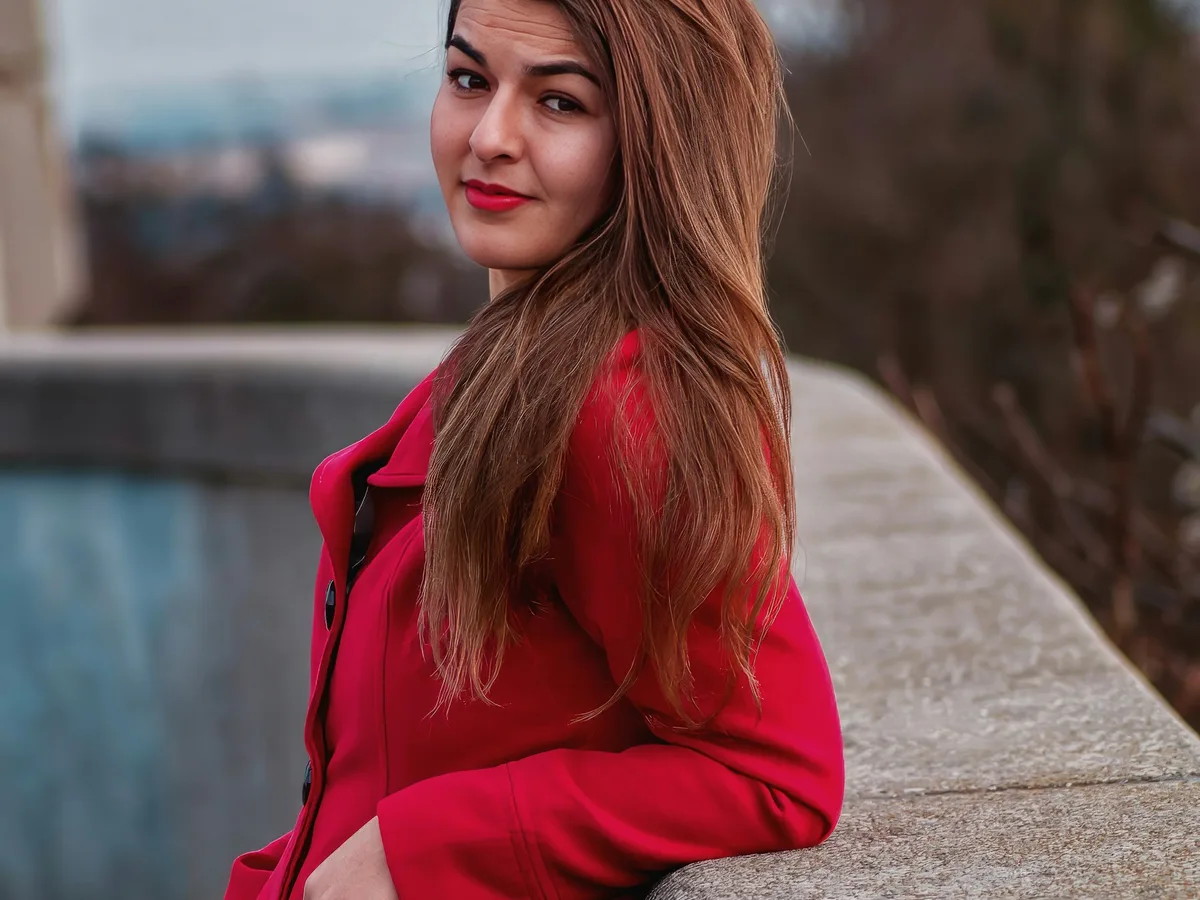
Choose a clear reference image where the main subject, visual style, lighting, and composition are easy to see.
visible image -> detailed prompt
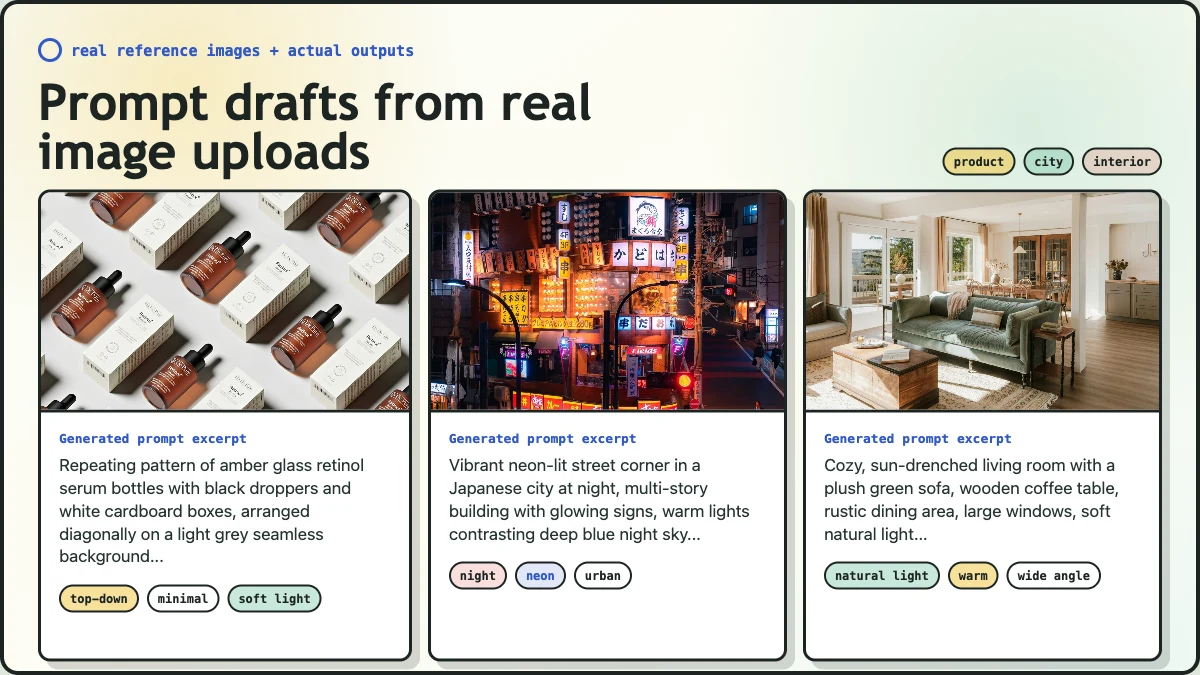
Upload an image and turn it into a detailed prompt for AI image generation. This image to prompt generator helps you describe what is visible in a reference image: the subject, style, lighting, composition, color palette, mood, and the small visual details that are easy to miss when writing a prompt manually.
Use it for a photo, artwork, product shot, character reference, interior scene, poster, or concept image. Keep the useful parts, remove details you do not want, and adapt the generated prompt for your preferred image model.
Image to Prompt
An image to prompt generator converts visible image details into a text prompt. It does not recover the original hidden prompt behind an AI-generated image. Instead, it creates a new AI-ready prompt from what can be seen in the uploaded image.
A useful prompt from image output should explain the main subject, setting, visual style, lighting, camera feel, composition, colors, and mood in a way that an AI image generator can understand. This image to prompt online workflow is designed for that job: upload image, analyze visible details, generate prompt from image content, review the draft, and copy prompt text into your creative workflow.
How It Works
Use the generated result as a structured starting point instead of guessing how to describe an image from scratch.
Choose a clear reference image where the main subject, visual style, lighting, and composition are easy to see.
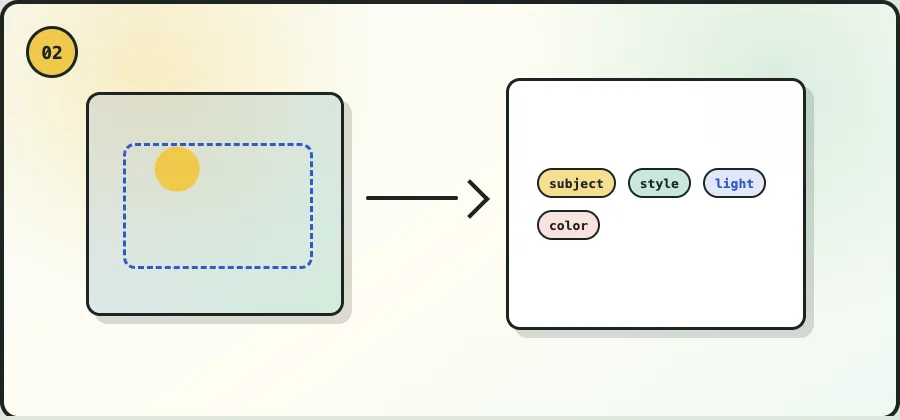
The AI image analyzer looks for people, objects, background, framing, colors, texture, atmosphere, and style signals.
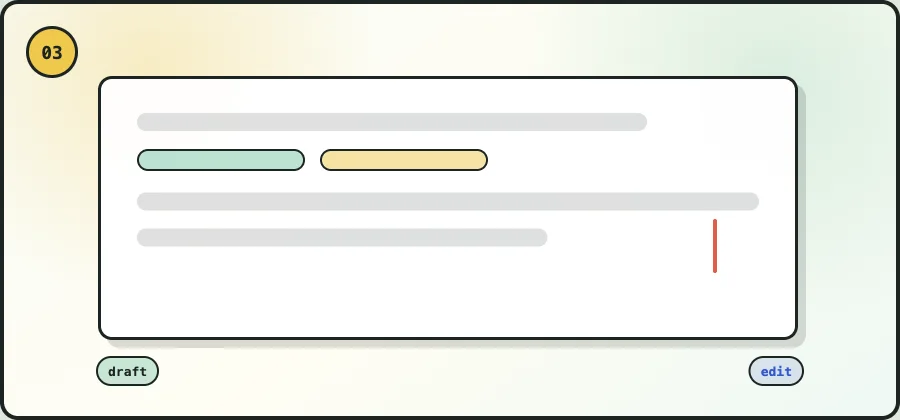
The generated prompt is a draft, not a final command. Keep details that match the image, remove details that feel wrong, and add model-specific parameters after the core prompt is clear.
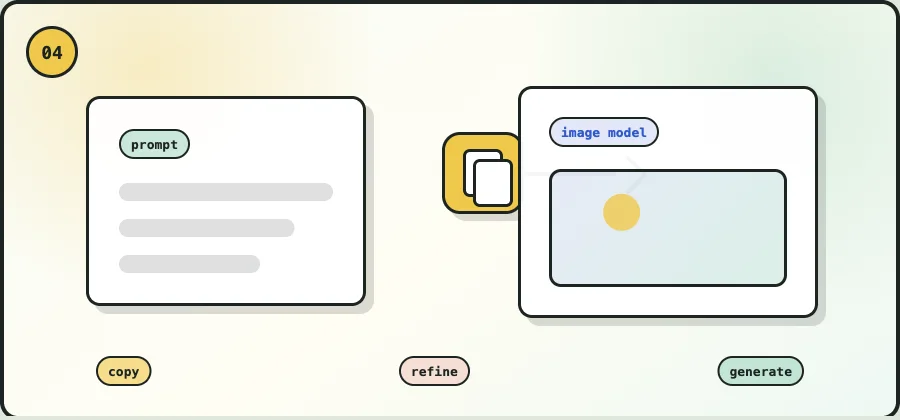
Use the copy prompt action when the draft is ready. If the result is too broad, add constraints. If it is too narrow, remove extra adjectives.
What the Generated Prompt Includes
A strong prompt generator from image inputs should produce more than a one-line description. The goal is to turn image details into a detailed prompt that gives a model enough direction while still leaving room for creative variation.
Use the Prompt from Image Output
The prompt from image output is most useful when you treat it as a structured starting point. Use the generated prompt to understand what the image is doing visually, then shape it for the result you want.
If the draft is too generic, add constraints such as subject age, product category, background type, camera angle, lighting direction, material, season, or mood. If the style is right but the subject is wrong, keep the style language and rewrite the subject line.
This makes the image to text prompt useful for both practical production and creative exploration: design references, product visuals, mood boards, social graphics, and art direction.
Example Image to Text Prompt
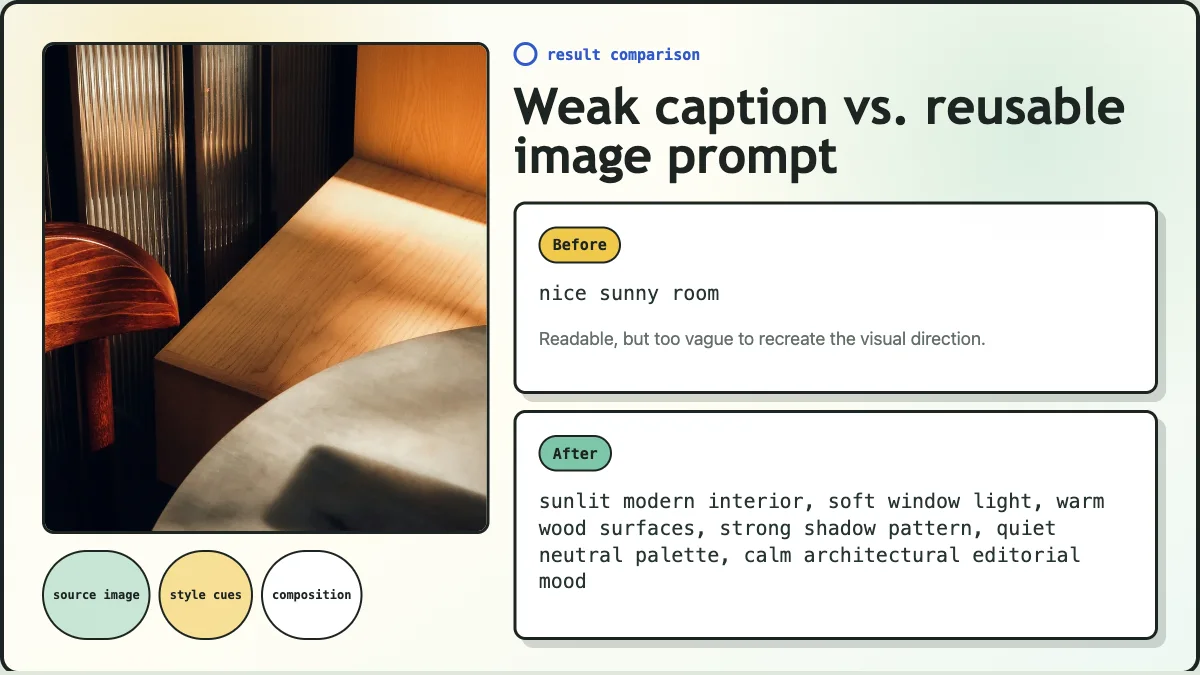
A useful image to prompt result should do more than caption the image. It should turn visible details into prompt language you can paste, edit, simplify, and reuse.
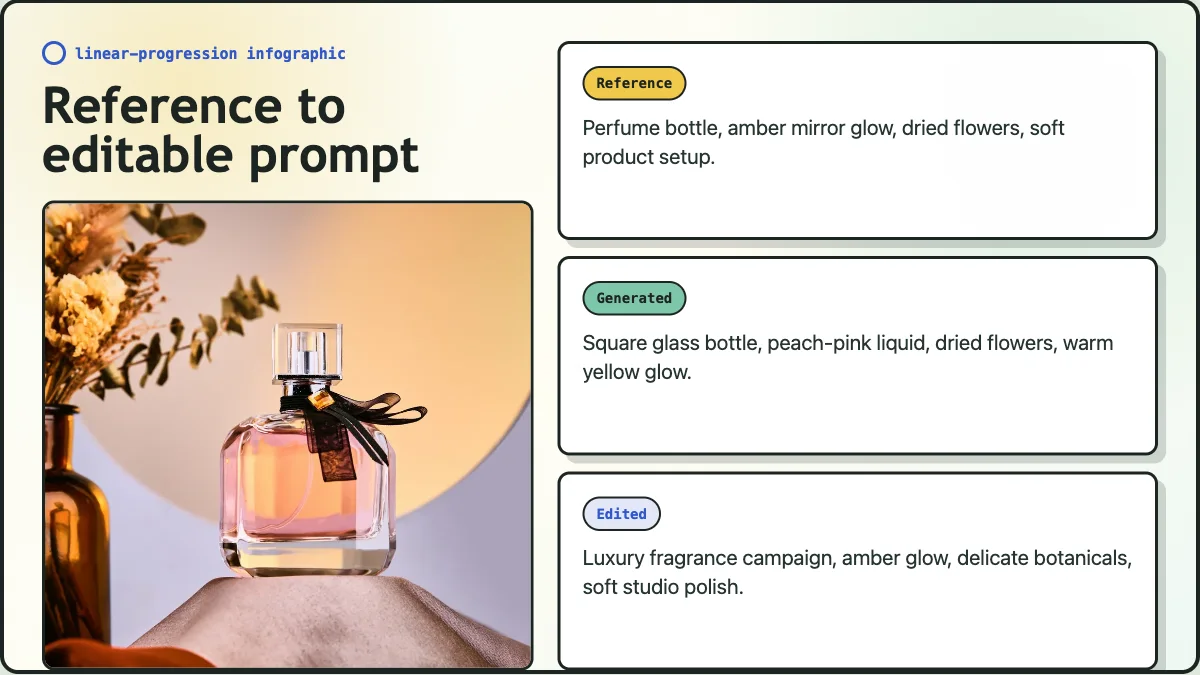
A square glass perfume bottle with peach-pink liquid, a black ribbon, an amber vase, dried flowers, and a warm circular glow on a pale wall.
A square glass perfume bottle with a clear cap and black ribbon, warm peach-pink liquid, amber vase with dried flowers and eucalyptus, soft yellow circular light on a pale lavender wall, diffused glow, delicate textures, elegant sophisticated product mood.
Luxury fragrance campaign image of a square glass perfume bottle, peach-pink liquid, black ribbon, amber glow, dried botanicals, pale lavender backdrop, soft diffused studio light, clean editorial polish.
The generated version captures many visible details. The edited version removes extra wording and sharpens the creative direction. That is the ideal way to use an image to prompt generator: generate, review, simplify, then adapt.
Photo to Prompt Use Cases
Compare the result with the source image, keep useful details, remove noise, and reuse the draft for your next generation workflow.
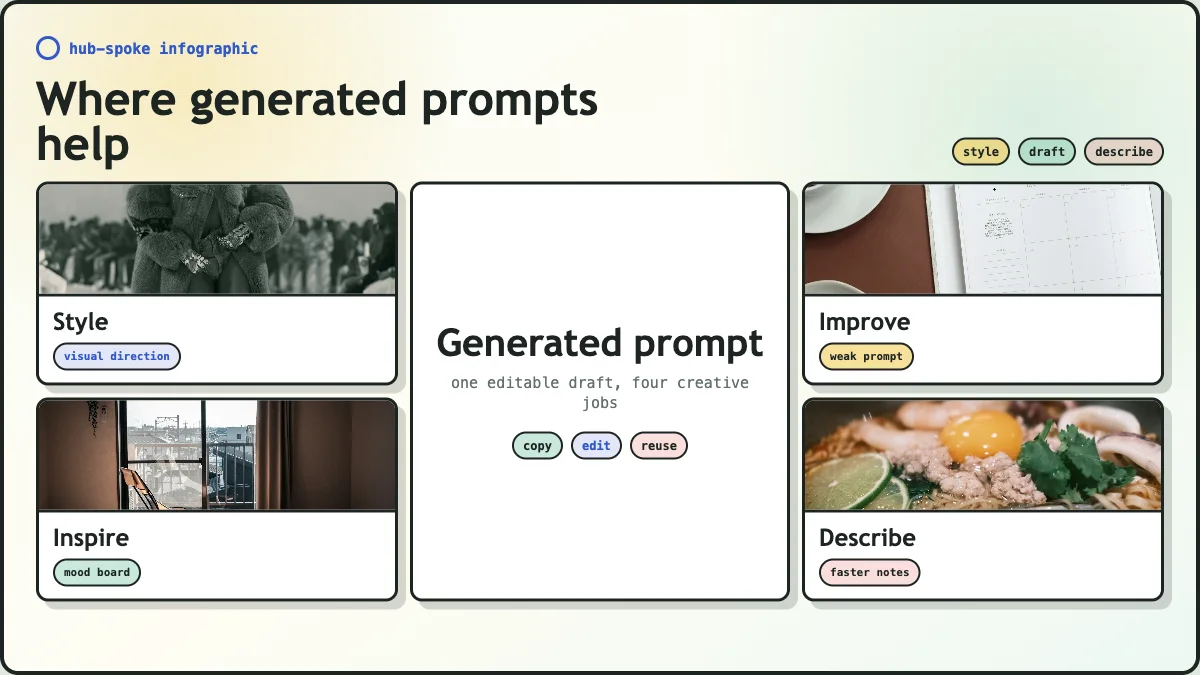
Use photo to prompt conversion when you want to recreate the feel of a reference image without manually naming every visual detail. Capture a similar composition, color palette, lighting setup, and mood while still changing the subject or setting.
If your current prompt only says "portrait in cinematic style" or "modern product photo," an image to prompt generator can surface missing lighting, background, framing, texture, and style cues.
Upload a reference image before starting a mood board, campaign visual, game asset, concept art direction, or social post. The generated prompt becomes a compact text version of the visual direction.
For product shots, packaging, fashion images, interiors, and brand visuals, a detailed prompt can capture material, lighting, layout, and atmosphere for repeated creative work.
If you are new to prompt writing, convert image to prompt examples can show how subject, style, lighting, composition, and mood work together.
Convert an image into a clean text prompt without manually writing every detail from scratch. Then adjust it for the level of detail your workflow needs.
Frequently Asked Questions
Answers for the important boundaries: visible details, editable drafts, long-tail image to prompt workflows, and model-specific refinement.
An image to prompt generator turns visible image details into a text prompt. People may also call this a prompt generator from image inputs, photo to prompt tool, image to text prompt tool, convert image to prompt workflow, or image to prompt AI. The task is the same: upload an image, generate a prompt draft, edit it, and copy it into your AI image workflow.
Upload an image, let the AI analyze visible details such as subject, setting, style, lighting, composition, color palette, and mood, then edit and copy the generated prompt draft for your image workflow.
No. It cannot recover an original hidden prompt or private generation settings. It creates a new prompt draft from visible image details, which can help you recreate a similar direction but is not the exact original prompt.
You can use the generated prompt as a starting draft, but model-specific support should not be assumed. Some models may need extra syntax, negative prompts, aspect ratio settings, style parameters, or shorter wording.
Not exactly. An image describer usually creates a plain caption or accessibility-style description. An image to prompt tool focuses on prompt language for image generation, including style, lighting, composition, color palette, and mood.
Clear images with a visible subject, strong composition, recognizable style, and enough lighting detail usually work best. Product photos, portraits, interiors, concept art, posters, fashion shots, food photography, and cinematic scenes are good candidates.
Editing helps align the prompt with your intent. Remove visible details that do not matter, add constraints, change the subject, simplify the style, or adapt the wording for a specific image model.
Yes. A prompt from image workflow is useful when you want inspiration, structure, or vocabulary for describing lighting, composition, style, mood, and other visible image details.
Generate Your Image Prompt
Upload a reference image, generate a detailed prompt, review the visible details, and copy prompt text when the draft matches your goal.